

Starter kits
Pool two devices
Add a desktop or a phone to your laptop's room with the invite link or QR code, decide what each one gives, and run the model across both.
Goal: run one model across two devices, so together they hold more than either could alone. This guide splits the Qwen3.6 35B MoE (22.5 GB) between a laptop giving 14 GB and a desktop giving 10 GB.
You need
Section titled “You need”- A laptop that opens the room, as in Chat on one laptop.
- A second device: a desktop or another laptop with Chrome, Edge or Safari 26, or a phone (iPhone with iOS 26, or Android with Chrome 121+).
- Both on the same Wi-Fi, ideally. Other networks work too, but some block the direct link.
- About 14 GB and 10 GB of free GPU memory on the two computers, for the MoE.
- 15 minutes. Each device downloads only its own part of the 19.4 GB model: about 11.7 GB and 8.7 GB here (5 minutes in our test).
On small laptops, pick Qwen3 1.7B (4 GB at 8K) instead: it fits on one, or pools with another device the same way.
Decide what each device gives
Section titled “Decide what each device gives”Each device gives the room some of its memory. This is its pledge: the device never holds more than that. The room adds the pledges up and runs any model that fits in the total.
- Give what is really free. On a Mac or a laptop without its own graphics card, the GPU shares memory with every open app.
- A desktop with a graphics card can give most of the card’s memory.
- A phone can give only a little, 0.5 to 2 GB. It mostly joins to ask questions. See Phones and tablets.
| To run | The room needs |
|---|---|
| Qwen3 1.7B | 4 GB (5.6 GB for a 16K context) |
| Qwen3.8 27B | 17 GB |
| Qwen3.6 35B MoE | 22.5 GB |
So a 16 GB laptop giving 8 GB and a desktop giving 16 GB can run the 27B or the MoE, which neither could run alone.
-
Open the room on the laptop. Go to pooled.run/room, set Memory (14 GB here), and press Start a room. Don’t start a model yet.
-
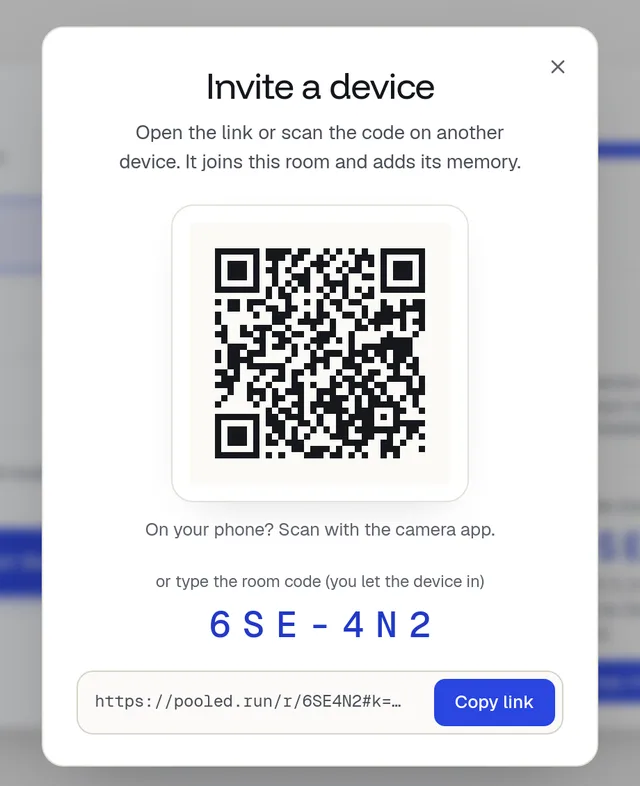
Press Invite in the header.
The Invite a device sheet shows a QR code, the room code and a Copy link button.
-
Bring in the second device.
Send yourself the link (Copy link, then paste it in a chat or a note) and open it on the desktop. It joins at once. Check Memory on its join screen, or This device gives once it’s in: raise it to 10 GB for the MoE.
Point the phone’s camera at the QR code and open the link. It joins at once, with a small pledge set for you.
The invite link and the QR code carry a key, so the device gets in without asking.
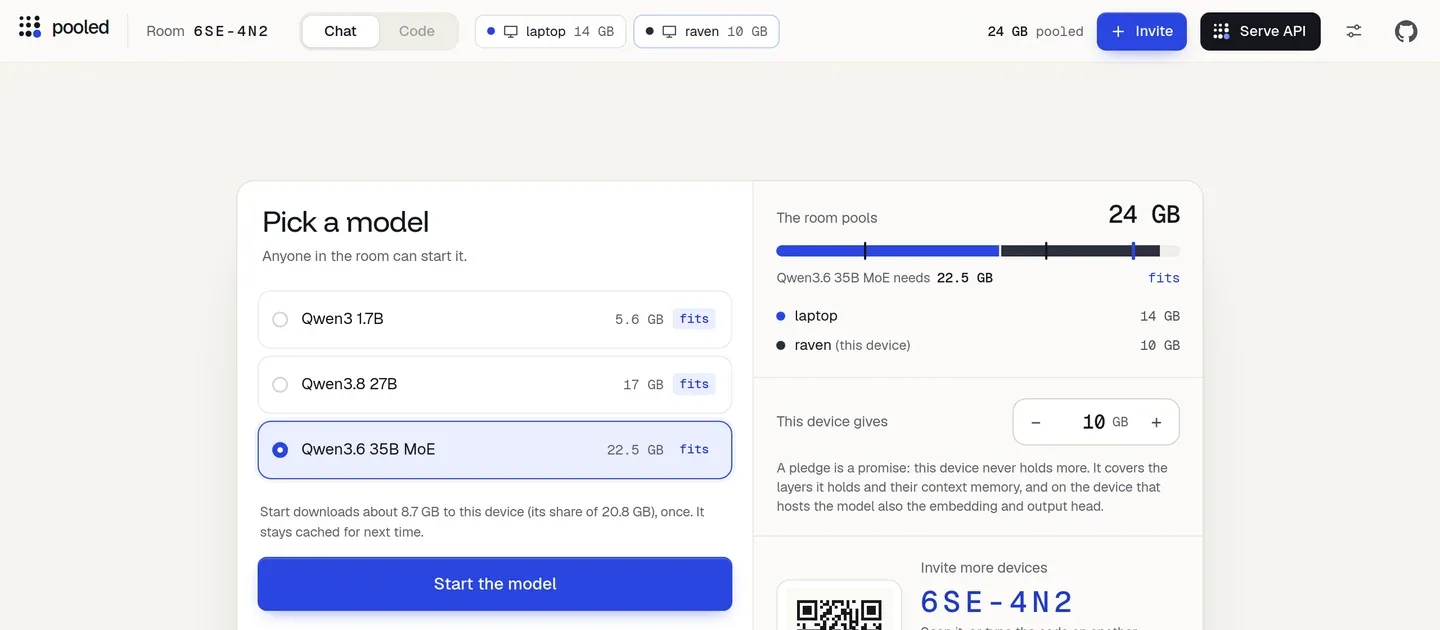
The desktop, straight in from the invite link, with a random name (raven). The key in the link is hidden in these captures. -
If a device typed the code instead, let it in.
A device that typed the code on pooled.run/room waits with
Waiting for the host to let you in. On the laptop, a card names it, its kind and what it gives, likephone wants to join (Android phone, 1 GB). Press Allow, or Deny if you don’t know it.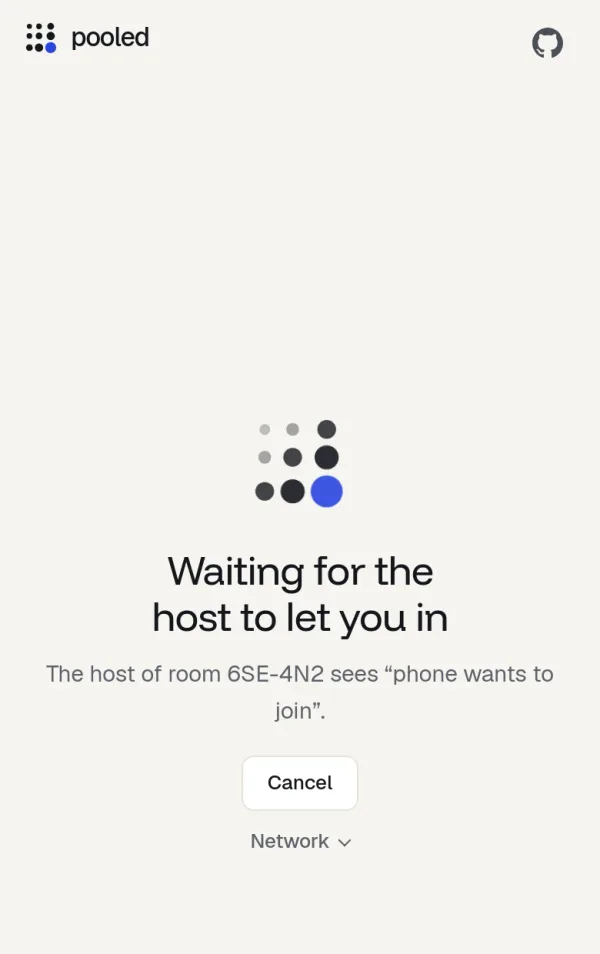
The phone, while it waits. 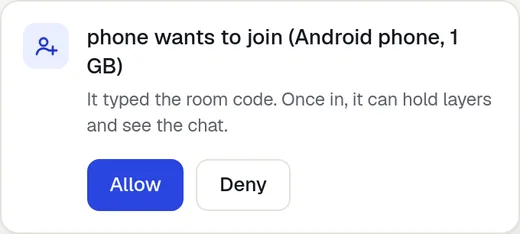
The laptop, with Allow and Deny. -
Check the room’s total.
The header now lists both devices, and The room pools shows their pledges added up. The picker preselects the biggest model that fits, and the line above Start the model says how much this device will download, like
Start downloads about 11.7 GB to this device (its share of 20.8 GB). Pick Qwen3.6 35B MoE if it isn’t selected: it needs 22.5 GB, and the room has 25.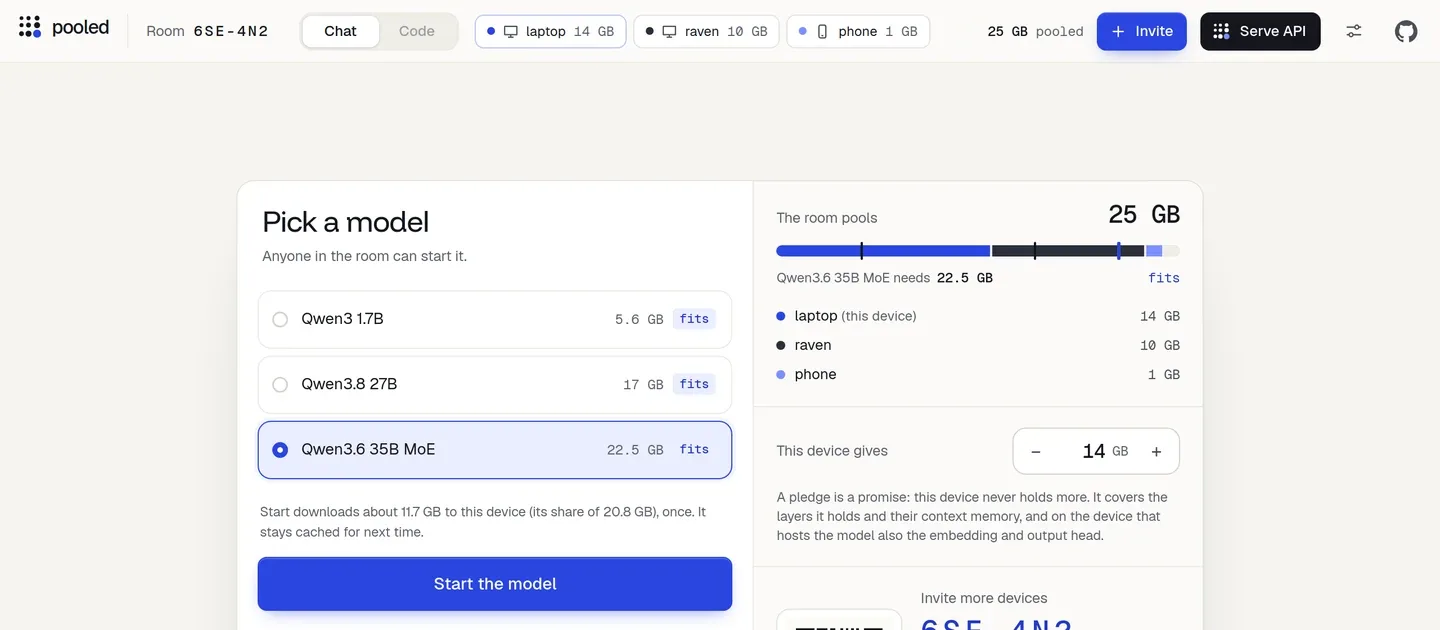
Three devices in the header, their pledges added up on the right. -
Press Start the model.
Each device downloads and loads only its layers. The load card shows a row per device, and the time left.
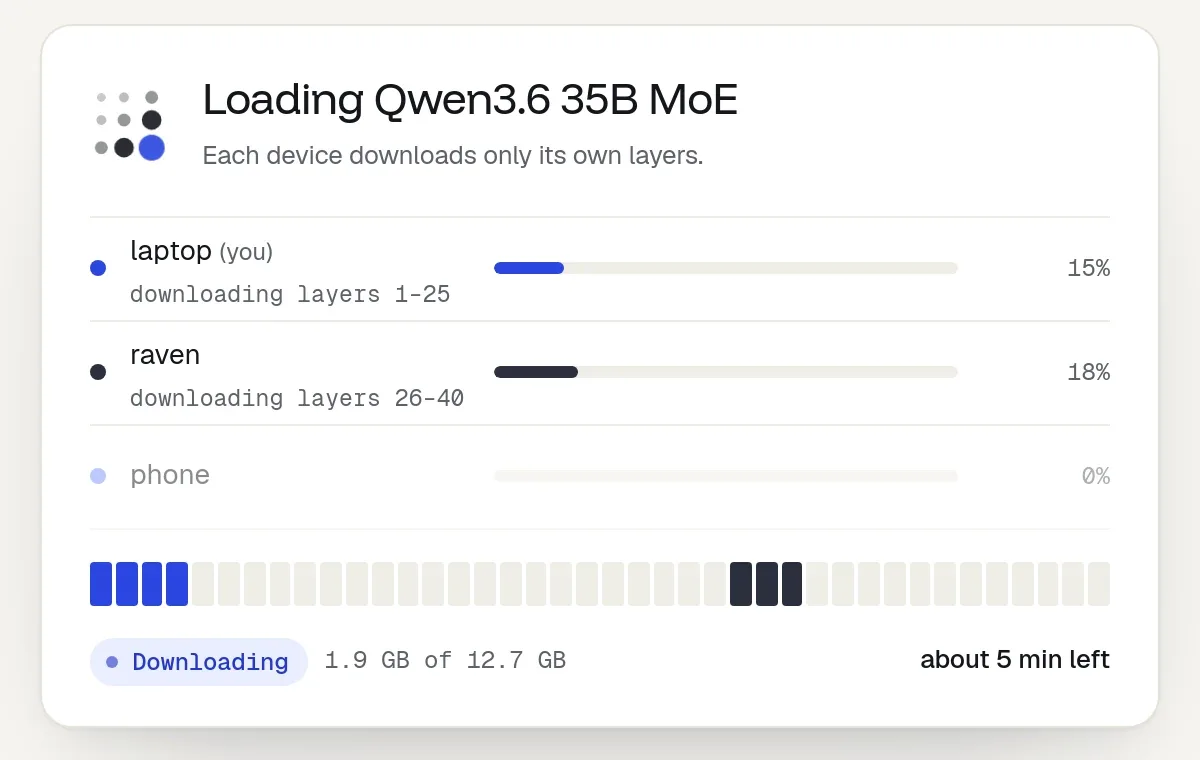
Two devices hold layers. The phone isn't needed to hold this model. -
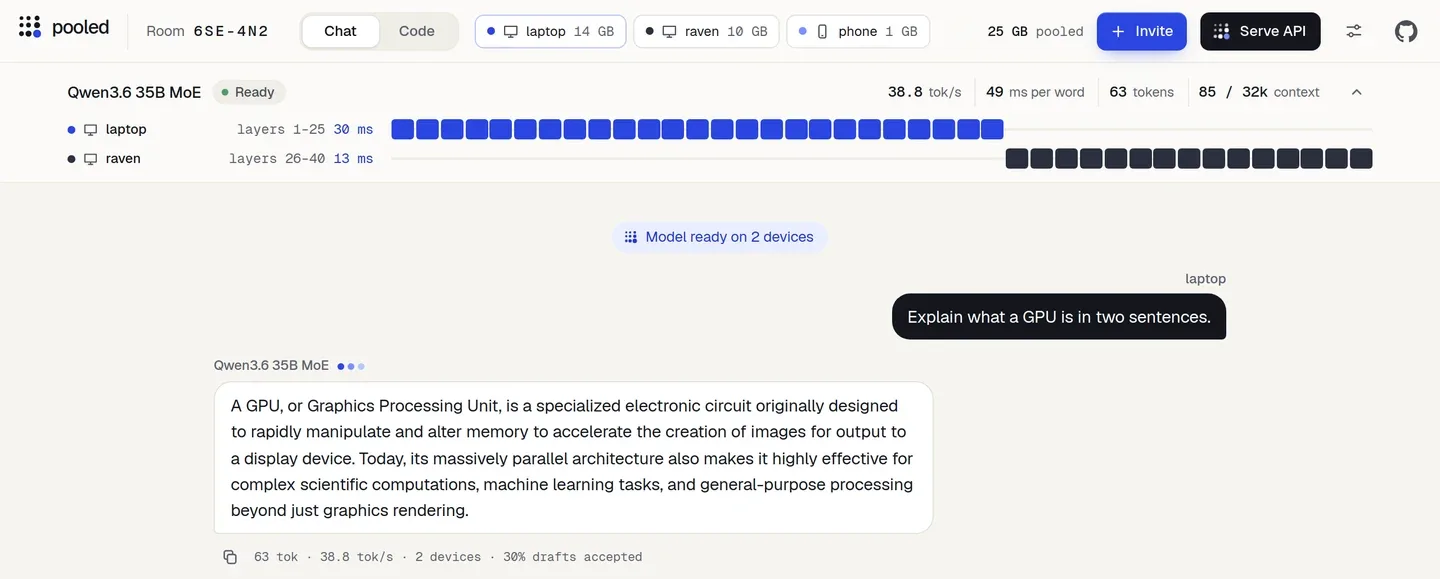
Ask something, from either device.
What you should see
Section titled “What you should see”- After step 3 or 4: the second device in the room’s device list, and its memory added to The room pools.
- After step 6: Model ready on 2 devices, Ready, and a bar per device with the layers it holds, like
laptop layers 1–25andraven layers 26–40. The room picks which device hosts the model: not always the one that pressed Start. By default it gives layers to the fastest devices first, each up to its pledge. A device that isn’t needed to hold the model joins to ask, and a phone usually does. - After step 7: the answer on the screens that see the chat, with a line like
63 tok · 38.8 tok/s · 2 devices · 30% drafts accepted.
How fast to expect
Section titled “How fast to expect”Every word the model writes passes through each device that holds layers, so every device adds a network hop.
- One device, when the model fits: fastest. Don’t split a model that fits on one device.
- Two computers on good Wi-Fi: a bit slower than one. On our test pair (a GB10 and a Mac, over home Wi-Fi, the 35B MoE) the split ran at about 29 to 35 words a second against 35 to 37 on one machine.
- A phone holding layers: much slower. A 1.7B room ran at 26 to 29 tok/s with a phone holding one layer, against 47 to 51 once the phone only asked.
So pool devices to run a model that doesn’t fit on one, not to make a small model faster. Numbers for more setups: Benchmarks.
If something goes wrong
Section titled “If something goes wrong”The device waits at “Still connecting…”, then “these two devices can’t reach each other”
Section titled “The device waits at “Still connecting…”, then “these two devices can’t reach each other””The network blocks a direct link between them. Put both on the same Wi-Fi, turn off any VPN, or try a phone hotspot. Work and school Wi-Fi often block it: see Networks and work Wi-Fi.
“No room with that code.”
Section titled ““No room with that code.””Check the code with the laptop’s header. The room lives in the laptop’s tab: if that tab closed, the room is gone. Codes never use I, L, O, U, 0 or 1.
The second device joined but holds no layers
Section titled “The second device joined but holds no layers”That is normal when the laptop alone can hold the model: the room keeps the fastest devices and the rest ask. To run the model across both, pick a bigger model, or lower the laptop’s This device gives before you press Start the model. A device that joins after the start waits until the laptop presses Re-deal the layers.
Right now a device that holds no layers can stay on the Loading card after the model is ready, even after a reload, and can’t ask from there. Until that is fixed, ask from a device that holds layers.
More: Troubleshooting.
- Pick a model for the memory you pooled.
- Build an app in Code mode.
- Invite devices: who gets in and how the lobby works.
- How layers are split.