

Starter kits
Build an app in Code mode
A worked example. Ask the room's model for a small web app, approve its edits, try it in the preview and download it.
Goal: get a working web app from one sentence, then change it, try it and keep a copy.
You need
Section titled “You need”- A room with the Qwen3.6 35B MoE started (about 23 GB of memory, one device or pooled). Follow Chat on one laptop or Pool two devices first.
- 10 minutes. Nothing more to download once the model runs.
On a small laptop, pick Qwen3 1.7B (4 GB at 8K), or pool it with another device. The 1.7B does better changing an app that already runs: start from a template (step 2).
Code mode builds static web apps: HTML, CSS and JavaScript. There is no shell and no server code.
-
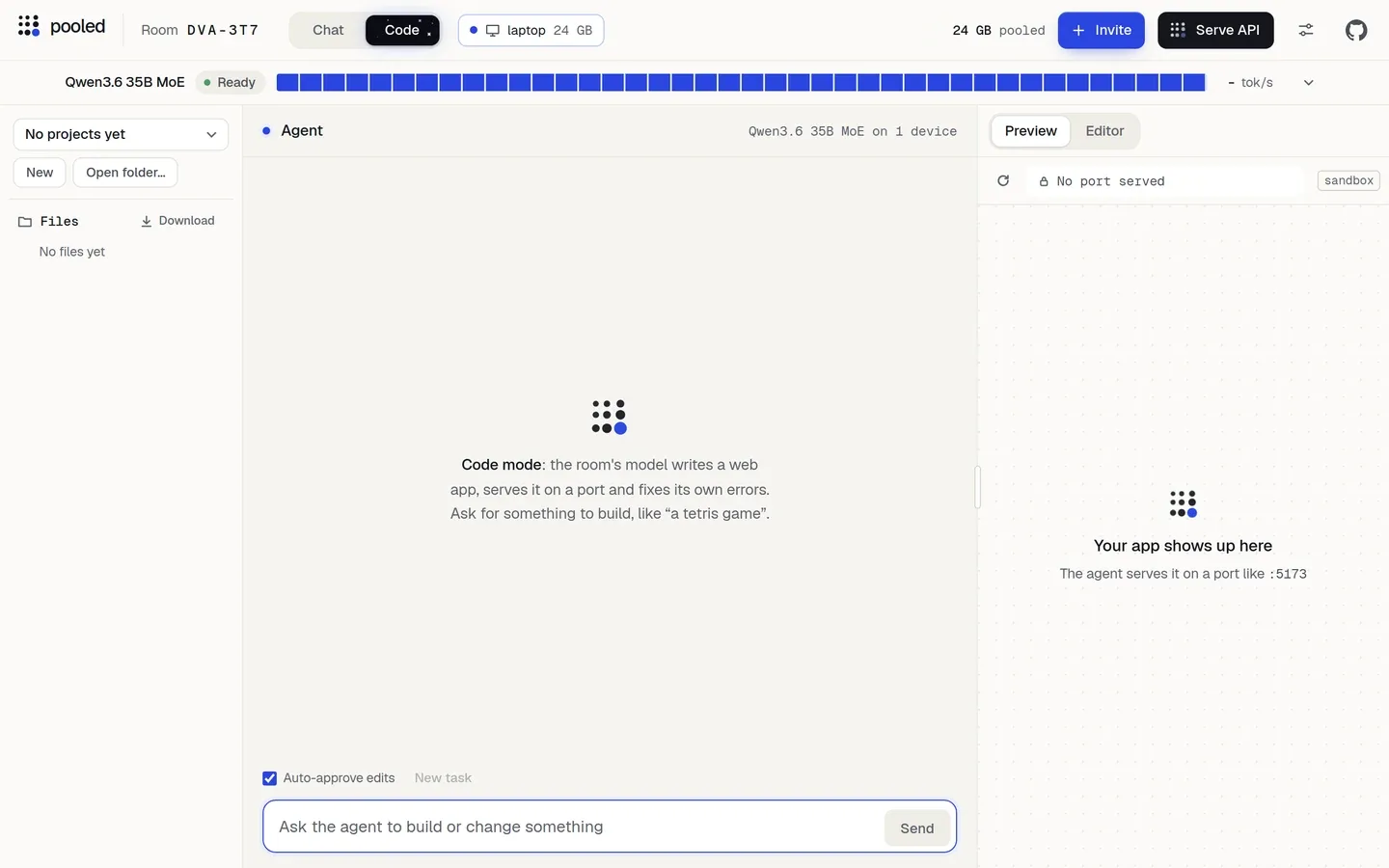
Press Code in the room’s header.
The room switches to three parts: the files on the left, the agent in the middle and the preview on the right.
-
Pick a starting point.
- From scratch: do nothing. Your first request creates a project named from your words.
- From a template (best on the 1.7B): press New, pick Game, Dashboard, Form app or Landing page in the menu next to the name, and press Enter. The app runs straight away, and the prompt box holds a first change to try.
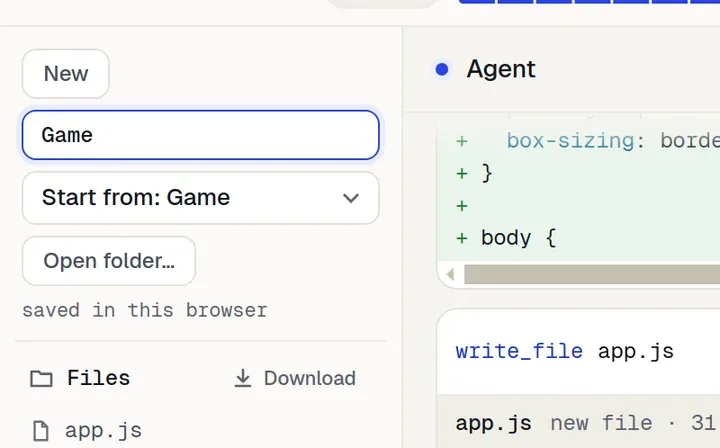
New, with the Game template picked. -
Turn off Auto-approve edits under the agent, so you see each change before it lands. (It is on by default for projects saved in the browser.)
-
Ask for the app. Type this and press Send:
Build a tip calculator: a box for the bill, buttons for 10%, 15% and 20%, and show the tip and the total.On a template, ask for a change instead, for example the one it suggests:
Add a high score that stays after a reload. -
Approve the edits.
Each time the agent wants to write a file, the timeline shows the change as a diff, marked needs approval, with Approve, Reject… and Allow edits for this task. Read it and press Approve. Reject… lets you say why, and the agent tries again. Allow edits for this task approves the rest of this request.
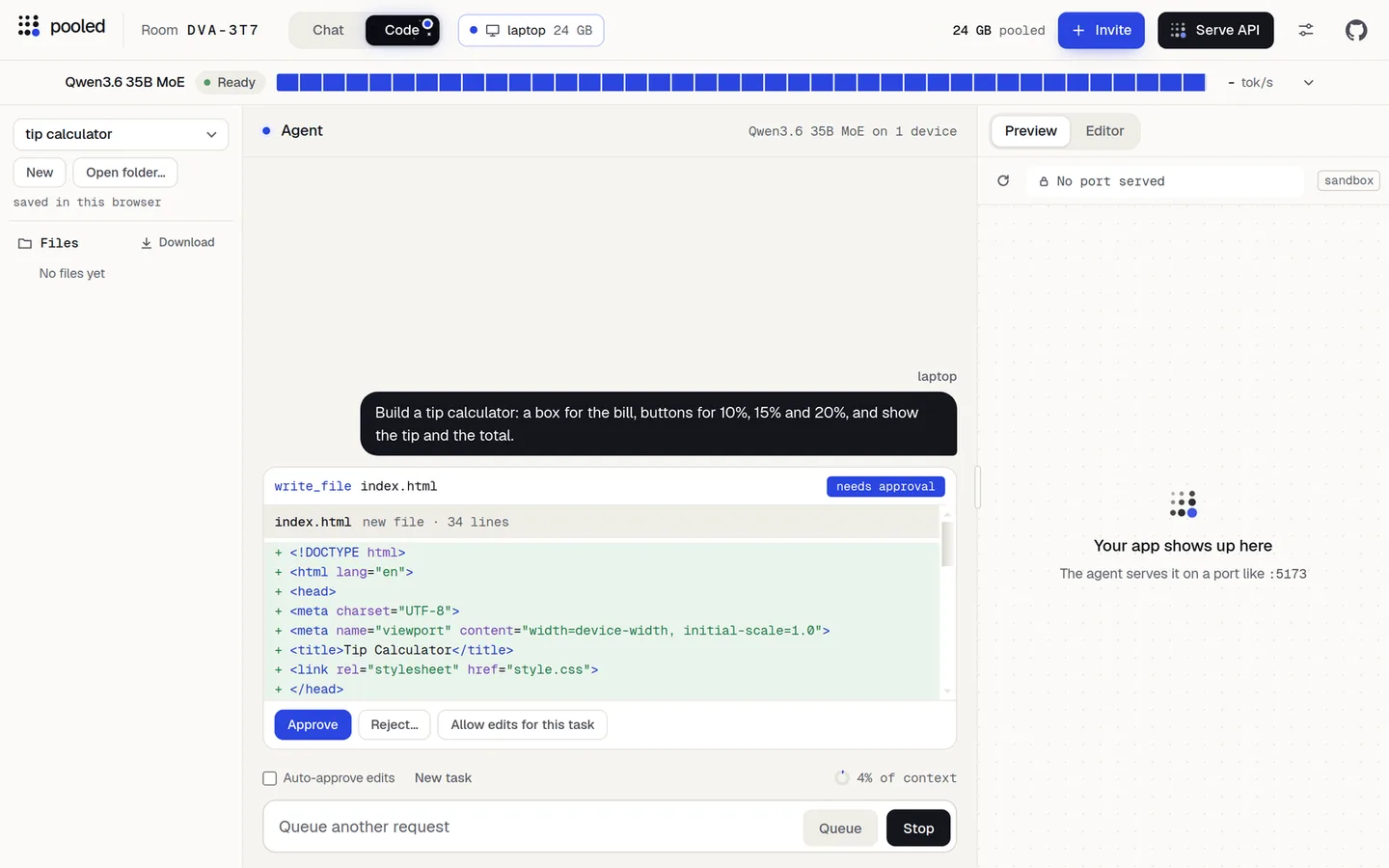
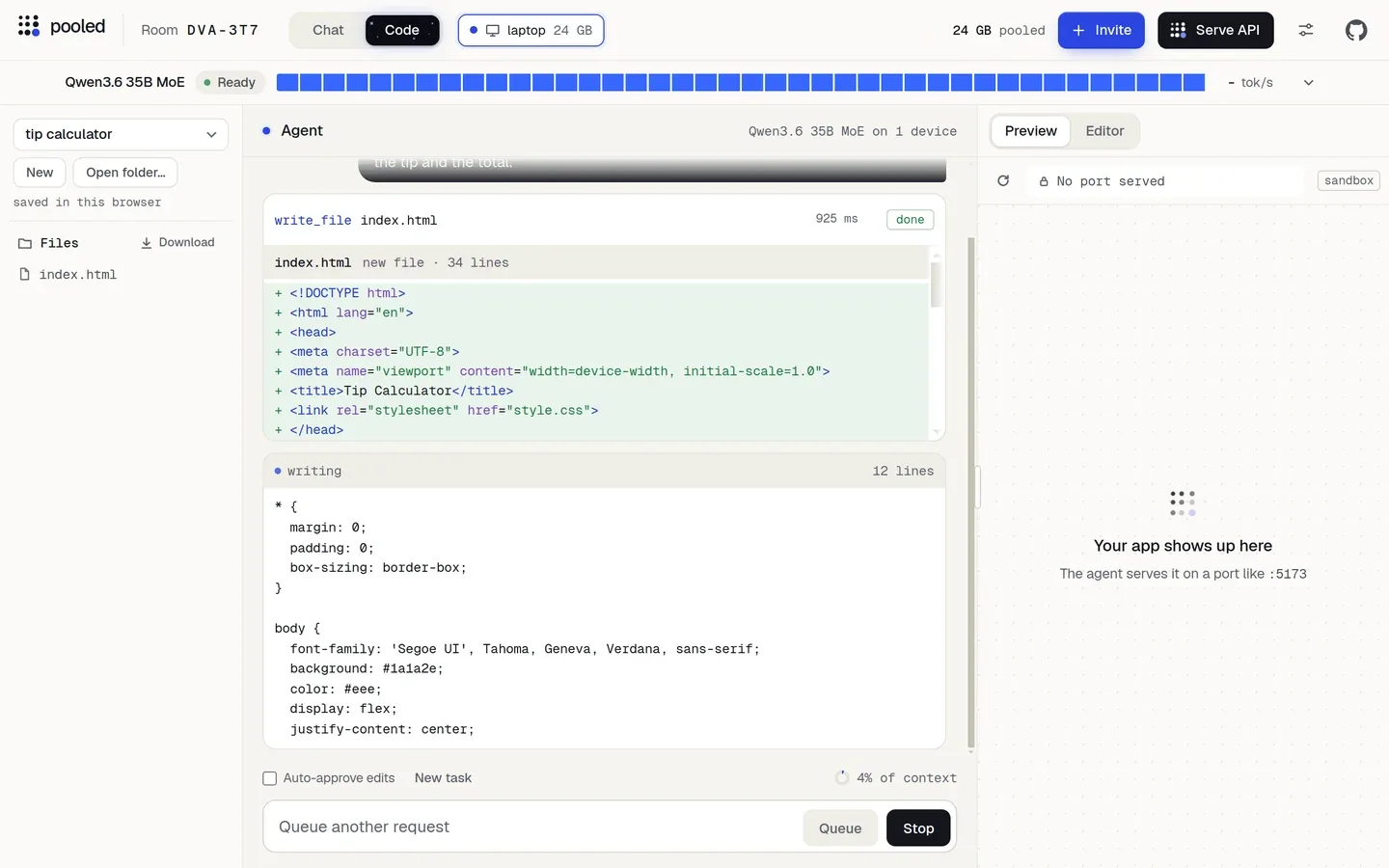
The timeline after the first approval: index.html is written and the agent goes on to style.css. In our test the MoE asked for three approvals, one per file. -
Try it in the preview.
When the agent is done it writes a short summary, and the preview on the right shows the app at
sandbox:5173/index.html. It reloads after every change. Type a bill, press a button and check the numbers. The Console under the preview shows errors, and Send to agent asks the agent to fix them.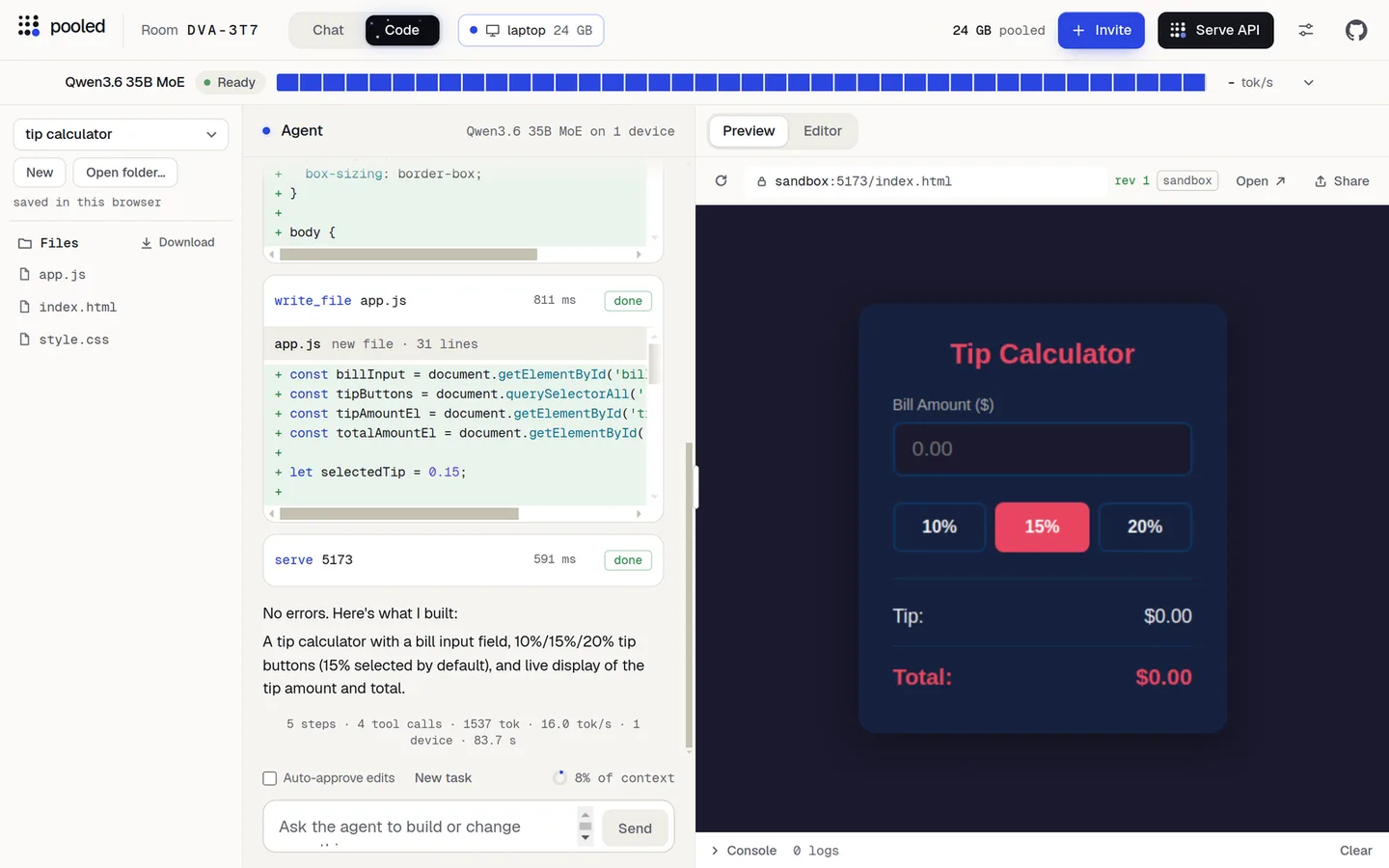
-
Ask for a fix or a change. Models make small mistakes, smaller ones more often: in an earlier test, the 1.7B’s first version added the tip to the bill as text instead of as a number. Say what is wrong, like
The total is wrong: turn the bill into a number before adding the tip., or ask for more, likeAdd a 25% button. The agent remembers the conversation until you press New task. -
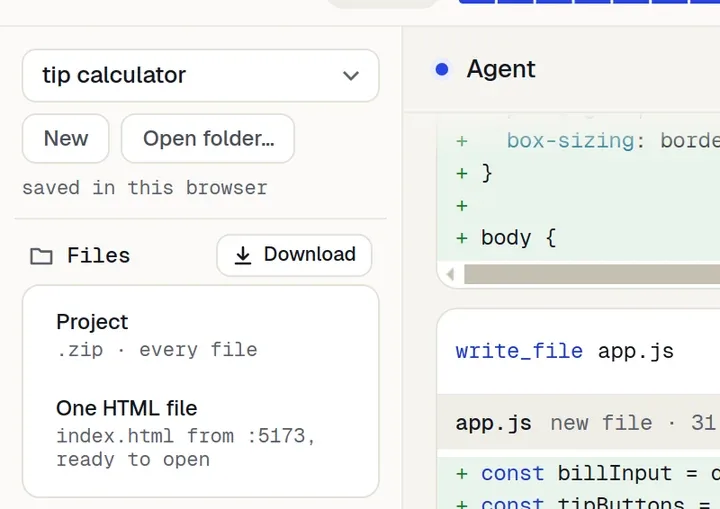
Download it. Press Download above the file list and pick:
- Project .zip: every file.
- One HTML file: the whole app in one file you can double-click.
What you should see
Section titled “What you should see”- After step 4: the timeline shows each tool call (
write_file,serve, and sometimeslist_dirorread_file) with done or error. An error along the way is normal: the agent reads it and tries another way. - After step 6:
No errors. Here's what I built:, a short summary, and a line like5 steps · 4 tool calls · 1537 tok · 16.0 tok/s · 1 device · 83.7 s. That was the MoE on one GB10, with three approvals, for an app inindex.html,style.cssandapp.js. - After step 8: a file like
tip-calculator.zipin your downloads.
If something goes wrong
Section titled “If something goes wrong”Code is greyed out
Section titled “Code is greyed out”Code turns on once the room’s model runs. In Chat, press Start the model and wait for it to load. If the page says Start a model first: Code mode runs on the room's model., the model stopped: start it again.
The agent stops, or the app is blank or half done
Section titled “The agent stops, or the app is blank or half done”Small models lose track on apps built from scratch. Use the MoE if the room can run it, start from a template, ask for one change at a time, or open Console and press Send to agent so it sees the error. A bigger model helps most: see Pick a model.
A button or form does nothing in the preview
Section titled “A button or form does nothing in the preview”The preview is a sandbox: a <form> submit never fires there. Ask the agent to use a button with a click handler instead. localStorage works, but is empty again after each reload.
More: Code mode and Troubleshooting.
- Code mode: templates, folders on disk, sharing with the room.
- The agent: its tools and why it stops.
- Use a room from your coding tools, for bigger projects.