

Starter kits
Use a room from your coding tools
Run pooled serve on your computer and point Codex CLI, Claude Code or opencode at the room's model. Copy-paste setup for each.
Goal: your coding agent runs on the room’s model instead of a cloud API.
pooled serve is a small program from the @pooled/cli package (version 0.3.3). It joins the room as a client and serves the room’s model on 127.0.0.1, as an OpenAI and an Anthropic API. It needs no GPU: the model still runs on the room’s devices.
You need
Section titled “You need”- A room running a big model. Coding agents send long prompts (15,000 to 20,000 tokens for Codex and Claude Code) and need a model that calls tools reliably. Use the Qwen3.6 35B MoE (22.5 GB across the room) or the Qwen3.8 27B at 32K context. The 1.7B is too small. See Pool two devices.
- Node 22 or newer on the computer where your tool runs. Check with
node --version. - The tool: Codex CLI, Claude Code or opencode.
- 15 minutes. The first prompt takes a while: the room reads the agent’s whole system prompt once.
-
Start the room with a long context. On the device that will host, open the room with
?ctx=before you press Start the model:https://pooled.run/room?ctx=65536Pick Qwen3.6 35B MoE and press Start the model. (For the 27B, use
?ctx=32768.) -
Copy the command. In the room, press Serve API in the header. The page shows the command for this room with a Copy button. On the device that opened the room, it carries the invite link:
npx @pooled/cli serve "https://pooled.run/r/4TKG9P#k=…"Keep the quotes: the
#starts a comment in most shells. This guide was checked with@pooled/cli0.3.3. To use exactly that version, writenpx @pooled/cli@0.3.3 serve …. -
Run it on the computer where your tool runs, and leave it running.
Once the model is ready, it prints the two base URLs, then settings for Codex, Claude Code and opencode sized for your room’s context:
pooled serve · room 4TKG9P · Qwen3.6 35B MoE · Q4 · 65536 tokens of contextOpenAI http://127.0.0.1:8080/v1 (OPENAI_BASE_URL, any API key: chat/completions, responses)Anthropic http://127.0.0.1:8080 (ANTHROPIC_BASE_URL: messages)bound to 127.0.0.1 only · no token (set POOLED_TOKEN to require one)prompts go to the room's host and may be shown to everyone in the roomFor this room's 65536-token context:Codex model_context_window = 65536, model_auto_compact_token_limit = 52428 (~/.codex/config.toml)Claude Code ANTHROPIC_BASE_URL=http://127.0.0.1:8080 ANTHROPIC_API_KEY=pooled CLAUDE_CODE_MAX_CONTEXT_TOKENS=65536 …opencode OPENCODE_DISABLE_CLAUDE_CODE=1 opencode, with this opencode.json: …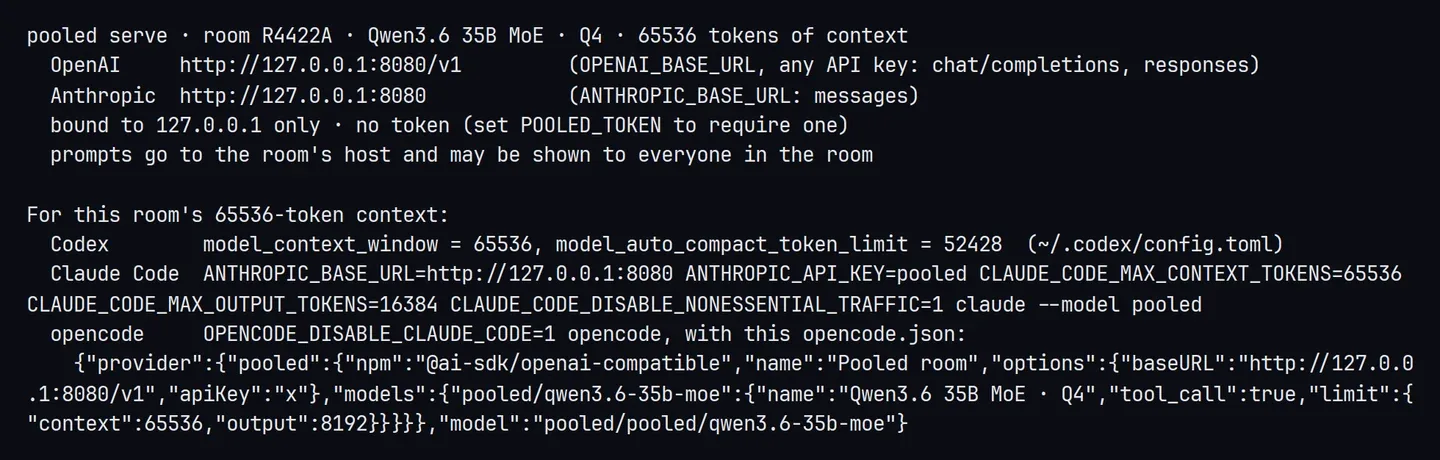
The banner for a test room with the 35B MoE at 64K, opened with pooled host. -
Check it answers. In another terminal:
curl http://127.0.0.1:8080/v1/chat/completions -H 'content-type: application/json' \-d '{"model": "pooled", "messages": [{"role": "user", "content": "Say hi"}]}'You get a JSON answer from the room’s model, with
"model":"pooled/qwen3.6-35b-moe". The room’s chat shows it too, marked “via API”.
-
Set up your tool. Use the numbers the bridge printed. The ones below are for a 64K room.
Add this to
~/.codex/config.toml:~/.codex/config.toml model = "pooled"model_provider = "pooled"model_context_window = 65536model_auto_compact_token_limit = 52428[model_providers.pooled]name = "Pooled"base_url = "http://127.0.0.1:8080/v1"wire_api = "responses"Then run
codexin your project. Codex warns that model metadata forpooledis not found. That is harmless: the two numbers above give it what it needs.Run this in your project, as one command:
ANTHROPIC_BASE_URL=http://127.0.0.1:8080 ANTHROPIC_API_KEY=pooled \CLAUDE_CODE_MAX_CONTEXT_TOKENS=65536 CLAUDE_CODE_MAX_OUTPUT_TOKENS=16384 \CLAUDE_CODE_DISABLE_NONESSENTIAL_TRAFFIC=1 claude --model pooledClaude Code doesn’t know how big the room’s model is. The two limits tell it, so it compacts in time.
Save this as
opencode.jsonin your project:opencode.json {"$schema": "https://opencode.ai/config.json","provider": {"pooled": {"npm": "@ai-sdk/openai-compatible","name": "Pooled room","options": { "baseURL": "http://127.0.0.1:8080/v1", "apiKey": "x" },"models": {"pooled/qwen3.6-35b-moe": { "name": "Qwen3.6 35B MoE · Q4", "tool_call": true, "limit": { "context": 65536, "output": 8192 } }}}},"model": "pooled/pooled/qwen3.6-35b-moe"}Then run it with Claude Code’s files left out of its prompt:
OPENCODE_DISABLE_CLAUDE_CODE=1 opencode -
Give it a small first task, like
Read README.md and tell me what this project does.The first answer is the slow one. After that, the room reuses what it already read and each step reads only the new part.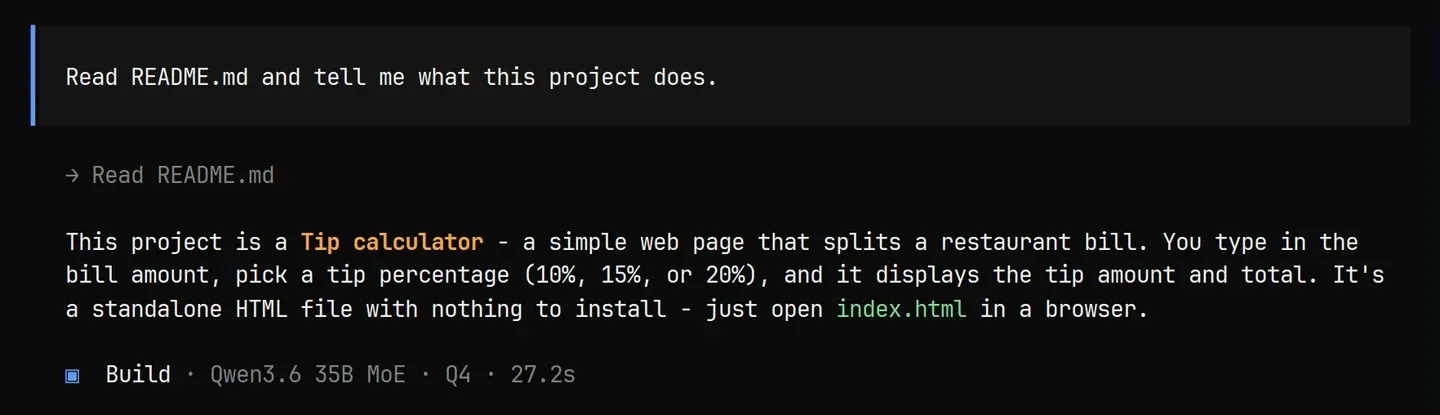
opencode answering through a room with the 35B MoE, in 27 seconds. The project is one HTML file and a README.
What you should see
Section titled “What you should see”- After step 3: the banner. On the room’s Serve API page, “Waiting for a client to connect” changes to say a client is connected.
- After step 6: the tool’s usual screen, answering from the room. On the 35B MoE, answers stream at the room’s speed (about 30 to 50 words a second on one or two fast computers).
If something goes wrong
Section titled “If something goes wrong”Requests get 503 or the tool says the model is unavailable
Section titled “Requests get 503 or the tool says the model is unavailable”The room’s model isn’t started, or the host’s page closed. Start the model in the room and keep that page open. Until then the bridge answers 503 with Retry-After: 5, and GET http://127.0.0.1:8080/health shows "ready": false.
Claude Code says “Prompt is too long” before sending anything, or Codex or opencode fail with a 400
Section titled “Claude Code says “Prompt is too long” before sending anything, or Codex or opencode fail with a 400”The tool doesn’t know the room’s context, or the room’s context is too small for its prompt. Use the numbers the bridge printed, and a room with the MoE or the 27B at 32K or more.
The bridge says “waiting for the host of room … to let this client in”
Section titled “The bridge says “waiting for the host of room … to let this client in””You gave it the room code, not the invite link. The host presses Allow on the room page, or you run the command from the Serve API page on the device that opened the room. If the host turned off Allow API clients in the room’s settings, turn it back on.
More: Troubleshooting: Serve API.
- Connect your tools: Continue, Open WebUI, LiteLLM and the SDKs.
- Serve API: what the bridge does, and who sees your prompts.
- CLI reference: every flag, like
--portand--token-file.