

Starter kits
A personal assistant with OpenClaw
Install the Pooled plugin in OpenClaw, start a room with the Qwen3.6 35B MoE, add a second device, and give the assistant its first task. No API key and no cloud model.
Goal: an OpenClaw assistant that thinks with the Qwen3.6 35B MoE, running on your own computers.
OpenClaw is a self-hosted assistant. The Pooled plugin makes Pooled its model: the OpenClaw gateway starts a Pooled room and holds part of the model on its own GPU. Your other computers, browser tabs and phones join the room and hold the rest.
Two minutes: an RTX 5070 PC and a Mac Studio pool the Qwen3.6 35B MoE, lending 10 + 14 GB. OpenClaw triages a real inbox through an email MCP server: 14 tool calls, the answer at 36 tokens a second.
You need
Section titled “You need”- A computer with a GPU for the gateway: Linux with Vulkan (glibc 2.38 or newer, like Ubuntu 24.04), macOS 26 or newer, or Windows with an NVIDIA GPU (tested on an RTX 5070, the gateway hosting the room).
- Node 22 or newer and OpenClaw 2026.9.6 or newer.
- About 23 GB of GPU memory across the room for the 35B MoE, the model for OpenClaw. One big machine can hold it alone. This guide pools two devices. A
pooled joindevice on a discrete GPU can also keep some experts in system RAM when the room is short (MoE experts in system RAM). - A 19.4 GB download for the MoE, once per machine, and 30 minutes the first time.
-
Install the plugin from ClawHub:
openclaw plugins install clawhub:@pooled/openclawOpenClaw shows ClawHub’s security audit, then the plugin’s capabilities, and asks before each. Answer
yto both. The same package is on npm:openclaw plugins install @pooled/openclaw.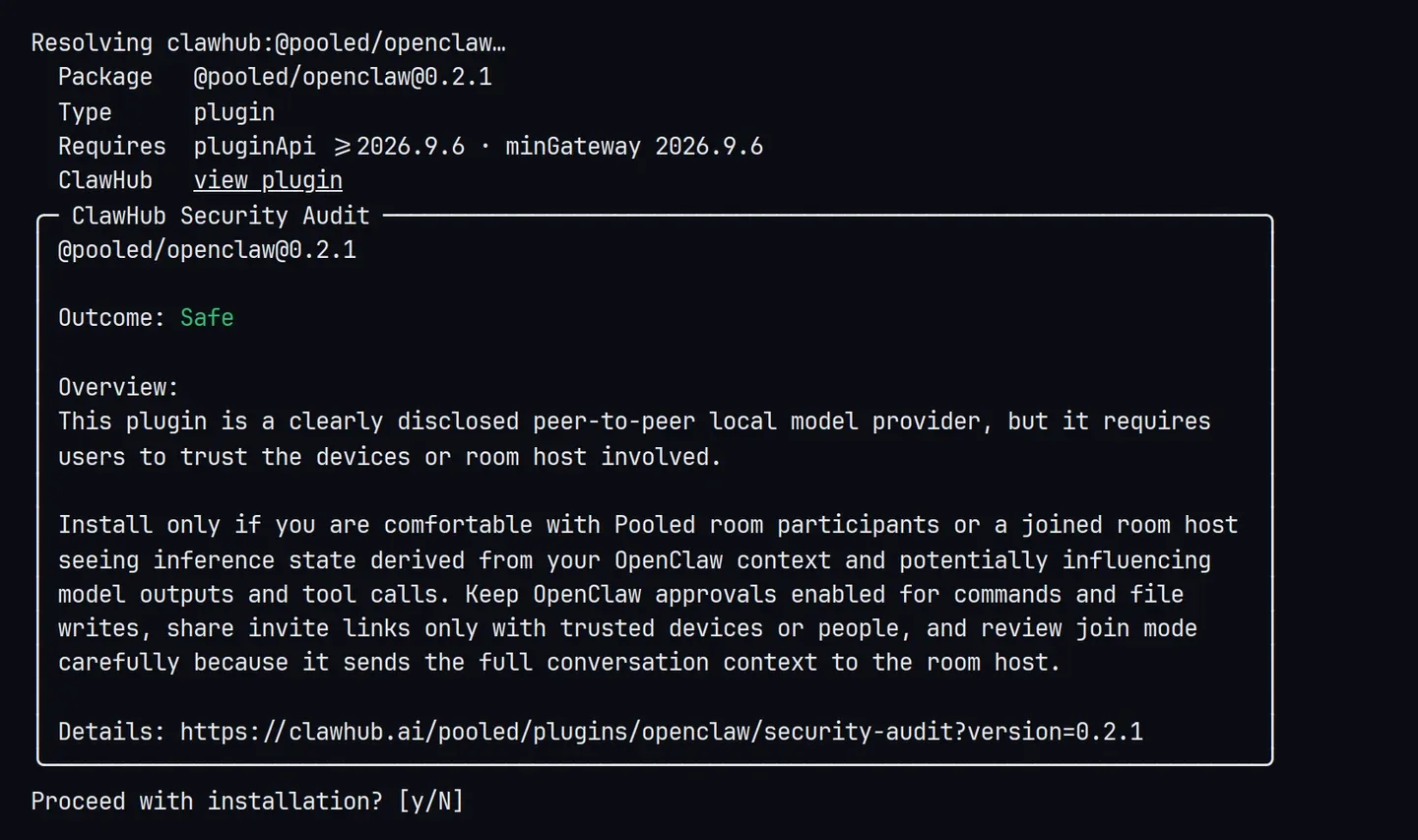
-
Pick Pooled. Run
openclaw onboard. Under Model/auth provider, choose More… and typepooled.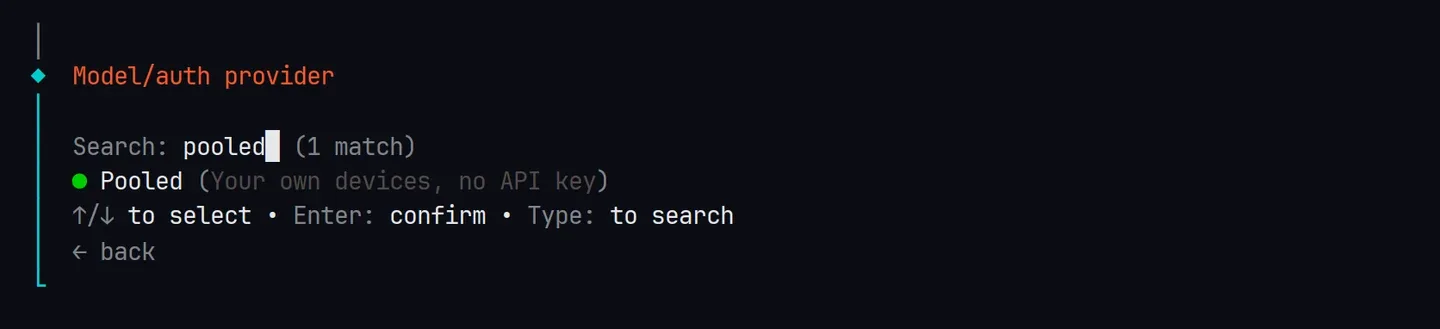
-
Start a room on this device. Onboarding shows the GPU it found, then asks how this device takes part.
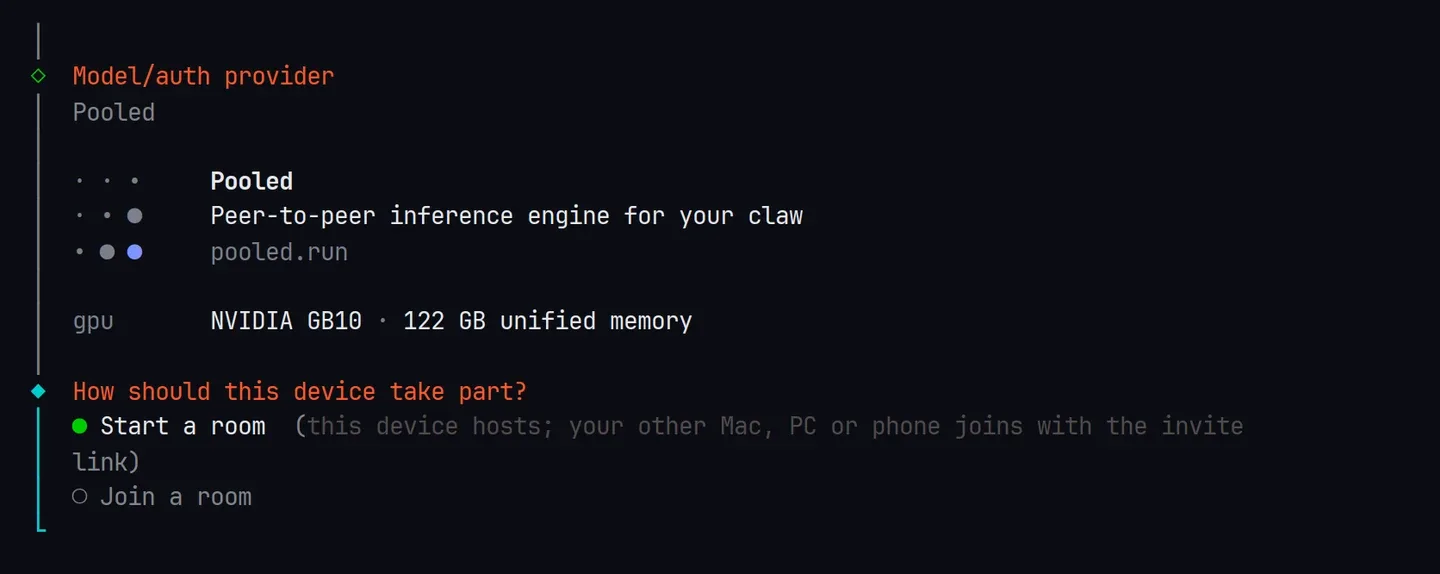
-
Lend memory and pick the MoE. Say how much of this GPU’s memory to lend. Which model? lists what each model needs and whether it is downloaded, and marks Qwen3.6 35B MoE as recommended. If it isn’t downloaded, onboarding offers to download it now, when the gateway starts, or not at all.
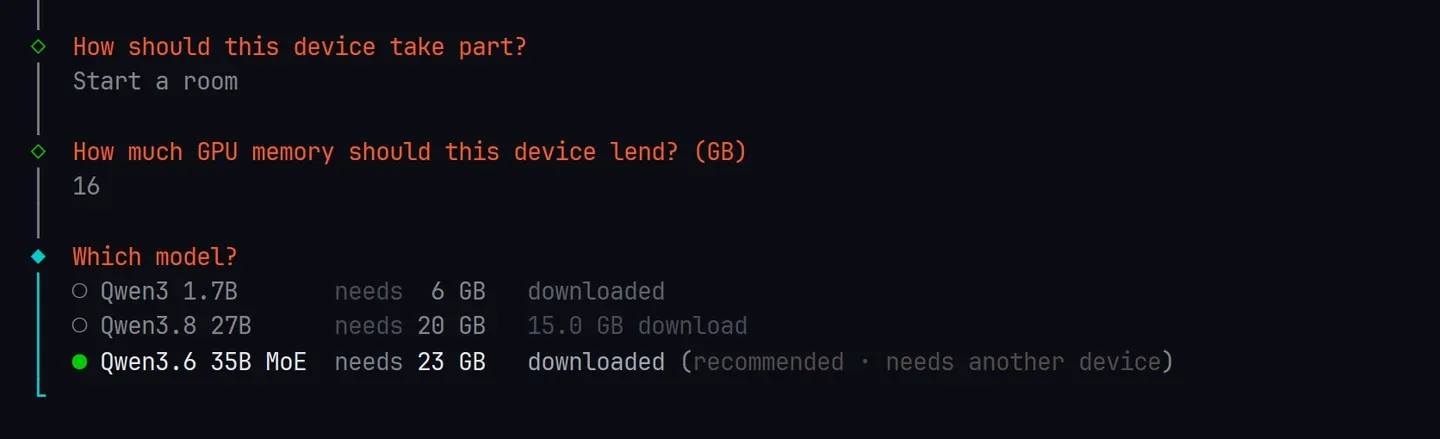
Then keep 2 devices (this one and one more) and Invite link only. Onboarding prints the room code, the invite link and how another device joins. They stay the same when the gateway restarts. Answer the rest of onboarding as you like.
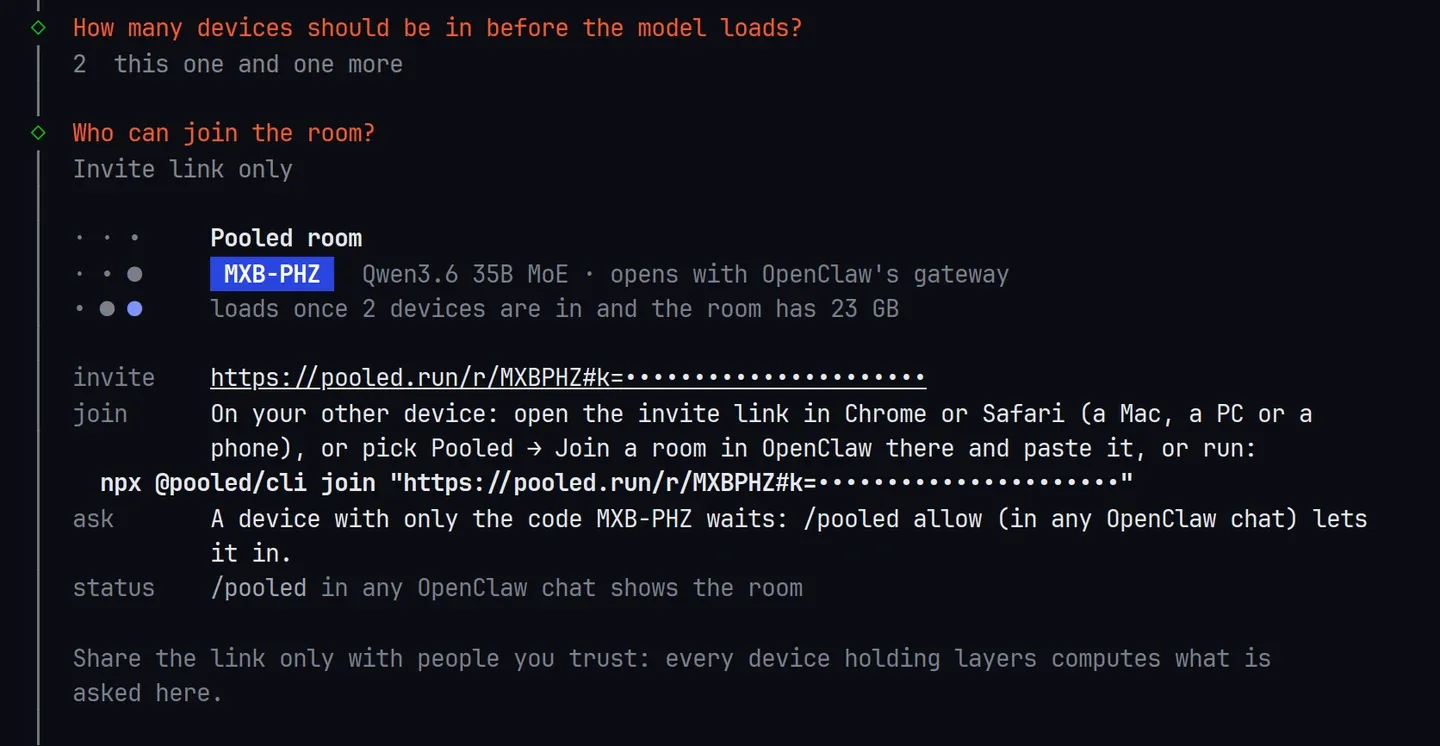
The invite key is hidden in these captures. -
Start the gateway, if onboarding didn’t:
openclaw gateway run. The room opens with it, in about 10 seconds. -
Add a second device. On another computer (or a second terminal), run
pooled joinwith the invite link, or open the link in Chrome or Safari. See Rooms from the terminal. With the invite link it gets in at once. With the code alone, it waits for you: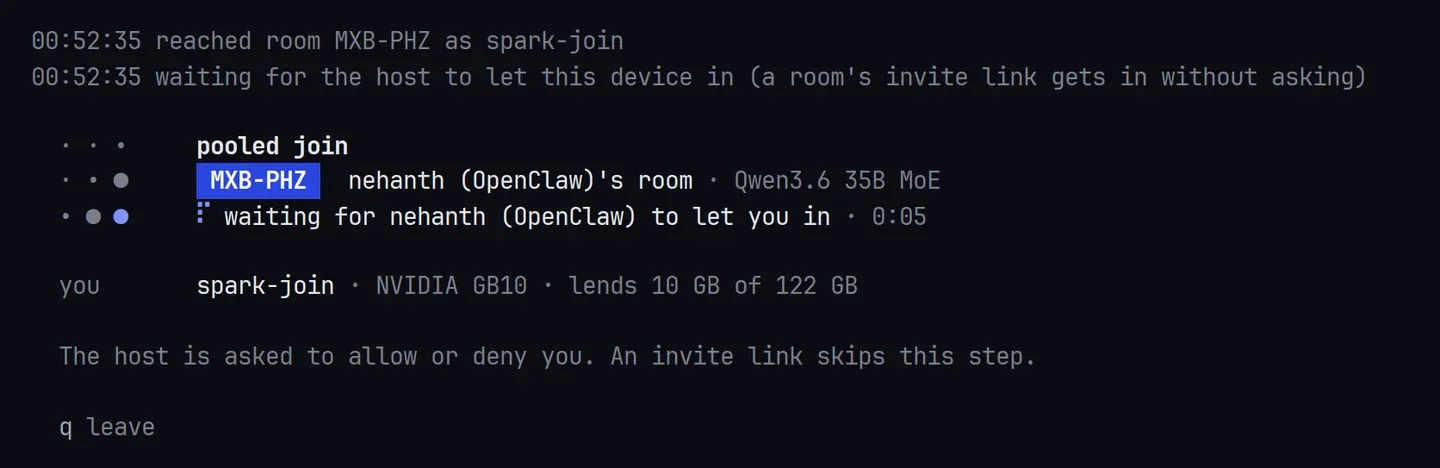
Open a chat with
openclaw tuiand type/pooled. It shows the room’s devices, how much memory it has against what the model needs, and who waits./pooled allowlets them in: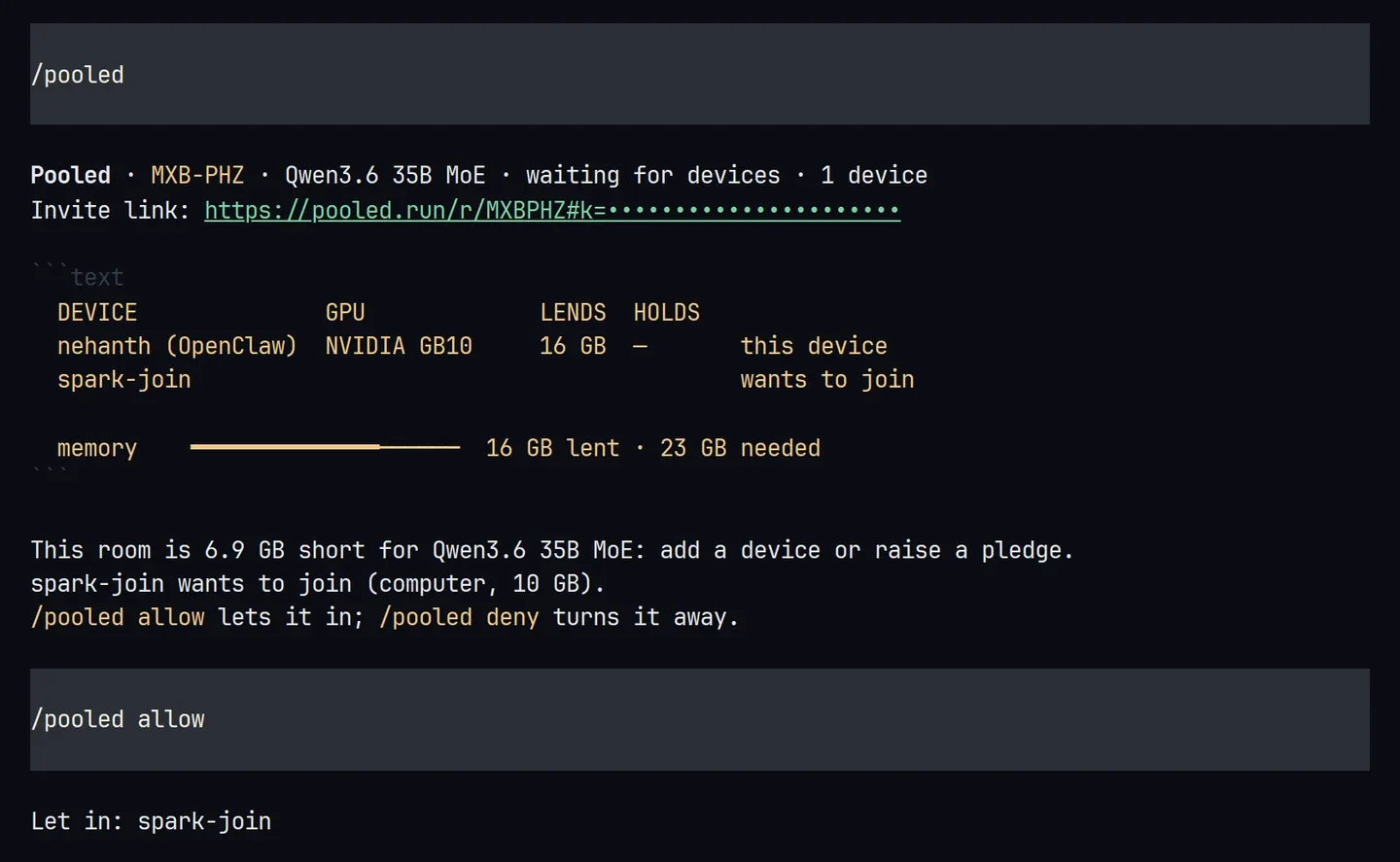
The waiting device shows a six-digit code, and the gateway’s log shows the same code beside its request (
its screen shows code …). If they match, nobody sits between the two devices. A device on an older Pooled is markedan older Pooled: it can't prove the invite key. See Who is on a link.The model loads once the room holds it (66 seconds in our test).
/pooledthen says online and which layers each device holds: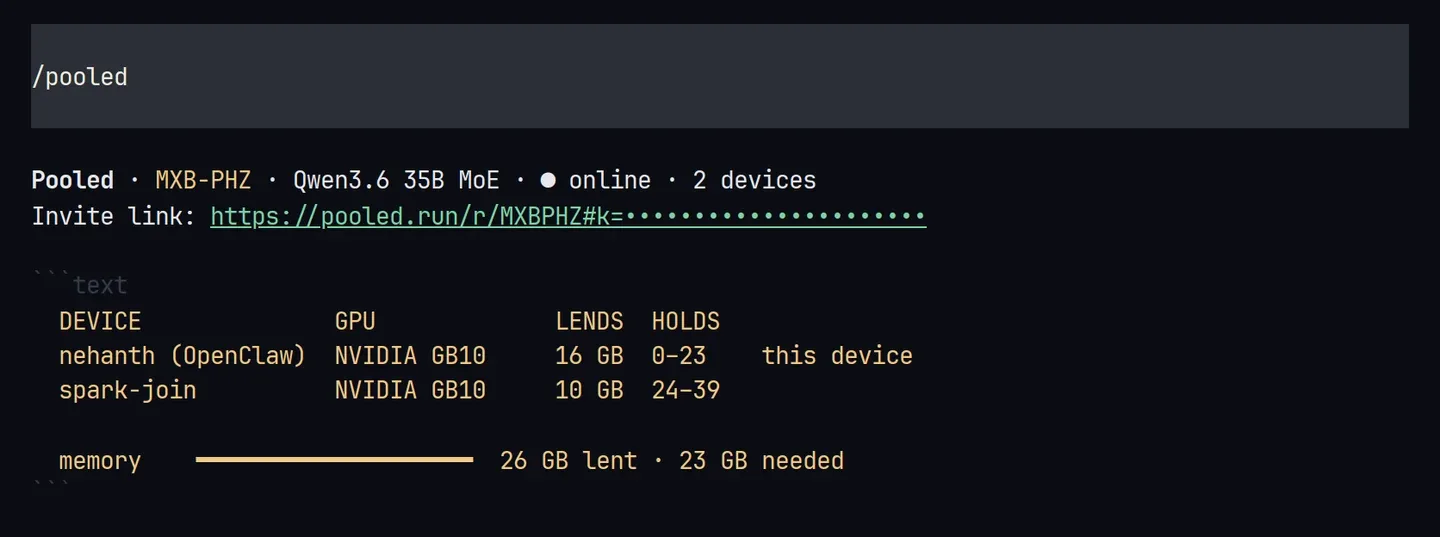
-
Give it a first task. Put a
notes.txtin OpenClaw’s workspace and ask:Read notes.txt in my workspace and turn it into a to-do list, most urgent first.It reads the file with its
readtool and answers.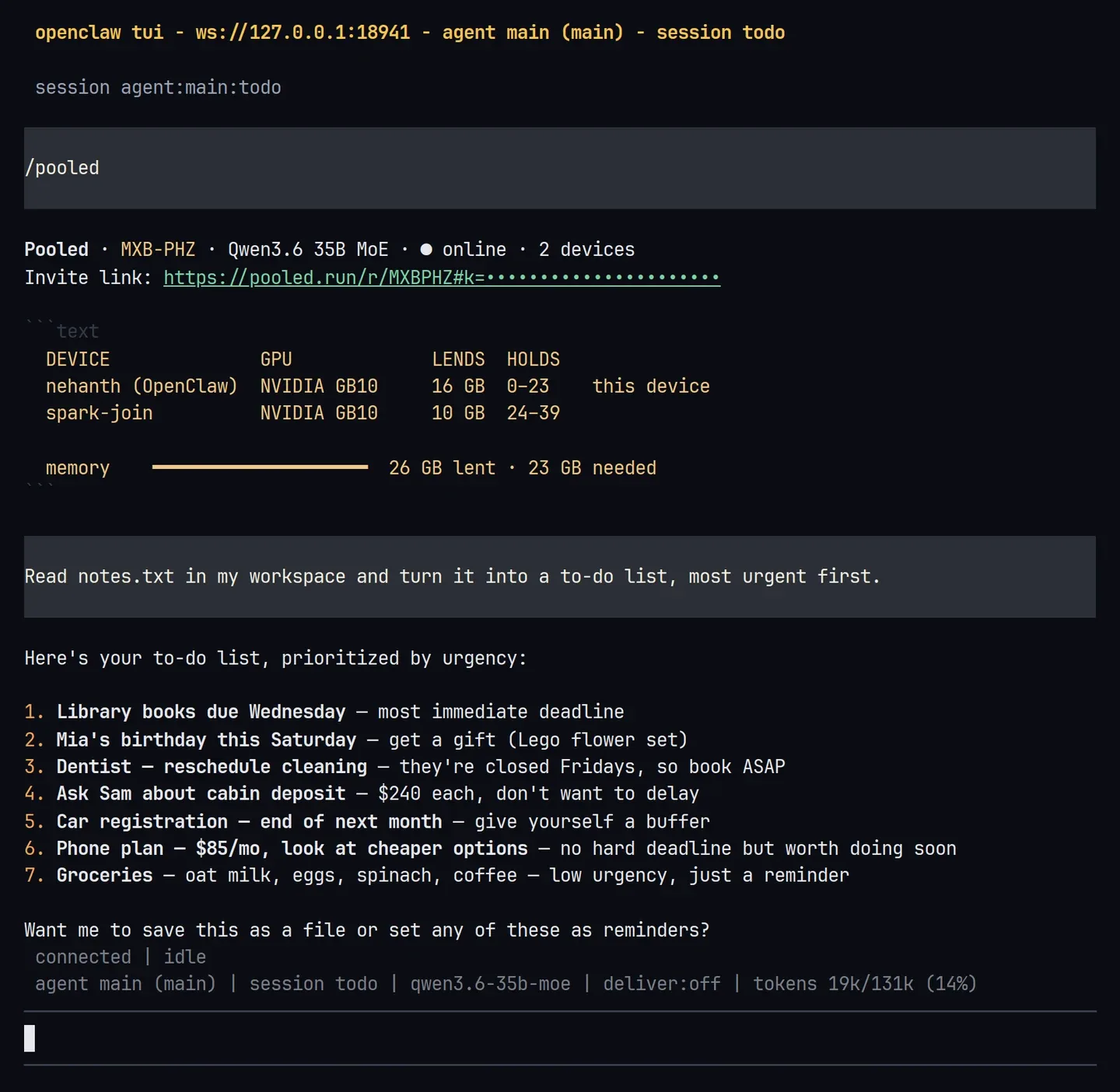
openclaw dashboardopens the same chat in the Control UI, with the tool call and the model, Qwen3.6 35B MoE · Pooled room: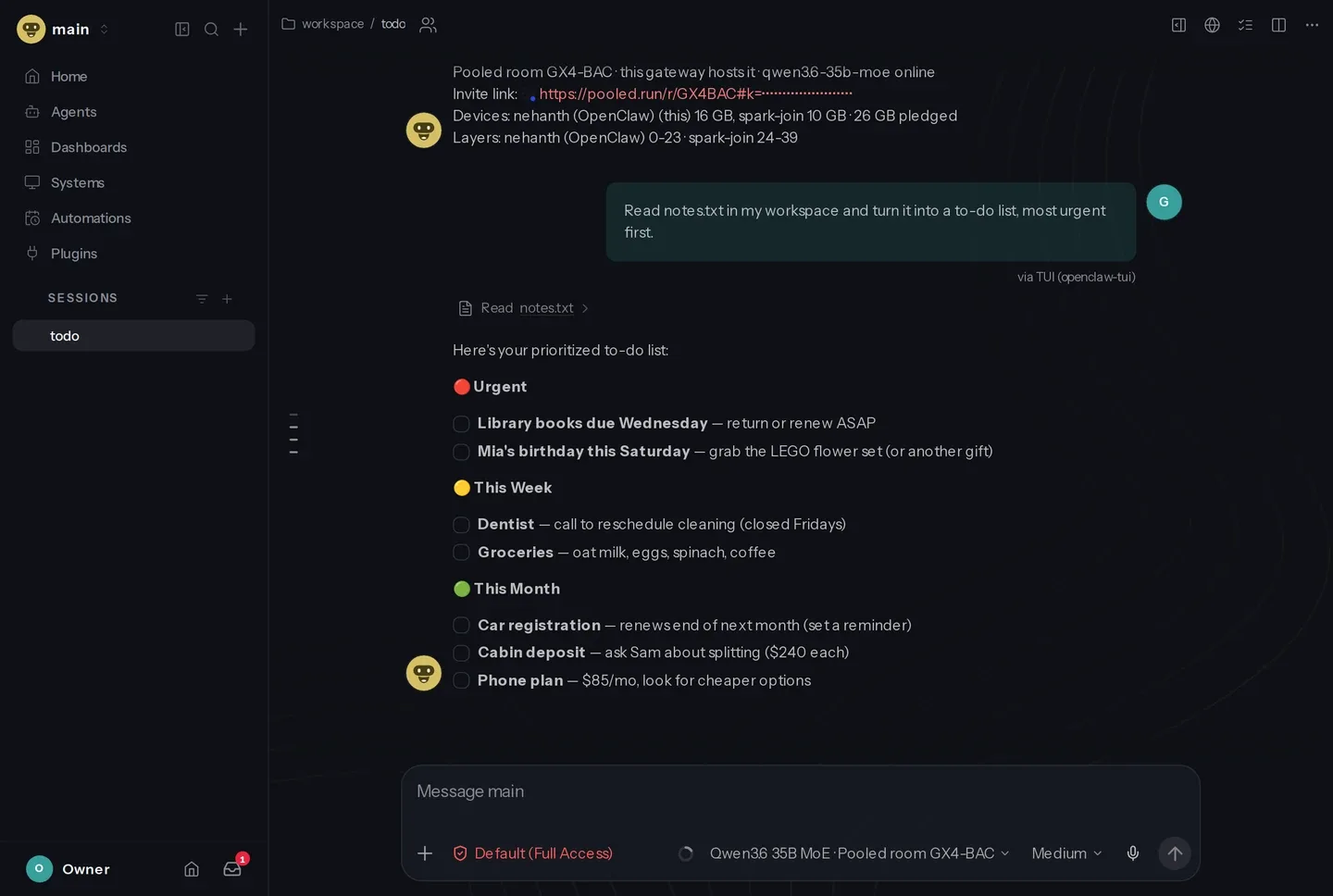
What you should see
Section titled “What you should see”- The first answer is slow: about 5 minutes in our test. OpenClaw sends a prompt of about 18,000 tokens (its instructions and tools), and the room reads it once. That took 265 seconds here.
- Later answers are fast. The room keeps that prompt, so the next question took 42 seconds, and the same task in a new session took 64 seconds. After a gateway restart, the plugin reads the prompt again as soon as the room is online, before you ask.
- Our test ran both devices on one GB10, which a benchmark shared at the time. On two computers the times differ with their GPUs.
Every device that holds layers sees the conversation, including the files OpenClaw reads, and could steer its tool calls: share the invite link only with people you trust. See Who can see and steer what.
If something goes wrong
Section titled “If something goes wrong”The chat says the room “is waiting for devices” or is short of memory
Section titled “The chat says the room “is waiting for devices” or is short of memory”The room doesn’t have the devices it waits for, or their pledges don’t hold the model yet. /pooled says how many GB it is short. Add a device (step 6), lend more with /pooled pledge <GB>, or pick a smaller model with openclaw onboard. A question waits up to 120 seconds for the room before it gives up.
A device waits to join
Section titled “A device waits to join”It came with the code, not the invite link. /pooled shows who waits, /pooled allow lets the first one in and /pooled deny turns it away. /pooled link prints the invite link to send instead.
Gateway not detected
Section titled “Gateway not detected”Onboarding couldn’t start the gateway as a service. Run openclaw gateway run and keep it open.
No WebGPU adapter or the gateway can’t use the GPU
Section titled “No WebGPU adapter or the gateway can’t use the GPU”The plugin needs Vulkan on Linux, Metal on macOS 26 or newer, or Direct3D 12 on Windows (NVIDIA GPUs). If the optional WebGPU package didn’t install, the gateway says how to add it.
The Control UI chat on Windows
Section titled “The Control UI chat on Windows”With OpenClaw 2026.9.8 on Windows, the Control UI’s chat works only at /chat/main. Open that page of openclaw dashboard, or use openclaw tui.
More: OpenClaw and Troubleshooting.
Try next: triage your inbox
Section titled “Try next: triage your inbox”The video’s task with made-up emails, no email account needed. Unzip sample-inbox.zip into your OpenClaw workspace (it makes an inbox/ folder with 15 made-up emails), then ask:
Triage my inbox: the 15 emails are in inbox/, read them all in one go. Sort them into reply today, later and ignore, one line each. Then draft short replies for the reply-today ones.OpenClaw lists the folder, reads all 15 in one step and answers. In our run, the leaking ceiling, the moved deadline and the airport pickup went to reply today, and the “you won a yacht” email went to ignore. On a Mac Studio plus an RTX 5070 PC the answer streamed at 29 tokens a second.
Full walkthrough: a clean install and a real inbox
Section titled “Full walkthrough: a clean install and a real inbox”Full walkthrough (5:27): OpenClaw and the plugin installed from scratch on a Windows PC with an RTX 5070 (12 GB, lends 10), a Mac Studio joining with npx @pooled/cli join (lends 14), and the same Gmail inbox: 6 drafts saved, nothing sent. Downloads and loading are sped up and labeled.
The email server in the video is @ni-c/imap-mcp. It has no send tool, and IMAP_ALLOW_TOOLS limits it to four tools: list folders, list messages, read a message and save a draft. On the gateway’s computer, in PowerShell:
npm install -g @ni-c/imap-mcpopenclaw mcp add email --command node --arg "$(npm root -g)\@ni-c\imap-mcp\dist\index.js" ` --env IMAP_HOST=imap.gmail.com --env IMAP_USER=you@gmail.com --env 'IMAP_PASSWORD=${IMAP_PASSWORD}' ` --env IMAP_READ_ONLY=false --env 'IMAP_DRAFTS_MAILBOX=[Gmail]/Drafts' --env IMAP_SEEN_KEYWORD= ` --env IMAP_TRUSTED_AUTHSERV_ID=mx.google.com ` --env 'IMAP_ALLOW_TOOLS=list_mailboxes,list_messages,get_message,save_draft' --connect-timeout 20openclaw mcp probe email- Mind the quotes.
'IMAP_PASSWORD=${IMAP_PASSWORD}'is in single quotes, so PowerShell passes it as written: OpenClaw saves the reference, not your password, and fills it in from the environment when it starts the server. Set$env:IMAP_PASSWORDto a Gmail app password in the shell that runsopenclaw gateway run. The[Gmail]/Draftsand allow-list values are single-quoted too."$(npm root -g)..."is in double quotes, so PowerShell fills in the global npm folder. In bash, use"$(npm root -g)/@ni-c/imap-mcp/dist/index.js"and keep the single quotes. IMAP_READ_ONLY=falseis needed forsave_draft. The allow list still leaves out every tool that moves or deletes mail. An emptyIMAP_SEEN_KEYWORDstops the server from tagging the messages it reads.openclaw mcp probe emailshould list 4 tools.
Then ask:
Triage my inbox: list my unread emails, sort them into reply today, later and ignore, one line each. Then save short draft replies for the reply-today ones.The drafts wait in Gmail’s Drafts folder until you read and send them yourself.
- OpenClaw: the config keys, results and limits.
- Rooms from the terminal, to add a computer with
pooled join. - Pool two devices, with a browser tab or a phone.