

Starter kits
Chat on one laptop
Your first chat. Open a room in the browser, start the Qwen3.6 35B MoE and ask it a question.
Goal: ask an AI model a question, running on your own laptop, in a browser tab.
You need
Section titled “You need”- One laptop or desktop with Chrome or Edge (113 or newer), or Safari 26. See Browsers and requirements for Linux and Firefox.
- About 23 GB of free GPU memory for the Qwen3.6 35B MoE, the model in this guide (the room says it needs 22.5 GB).
- 10 minutes, and a 19.4 GB download the first time (under 6 minutes on a fast line in our test). Later starts use the copy the browser keeps.
On a small laptop, pick Qwen3 1.7B (4 GB at 8K), or pool it with another device: see Pool two devices.
No account and nothing to install.
-
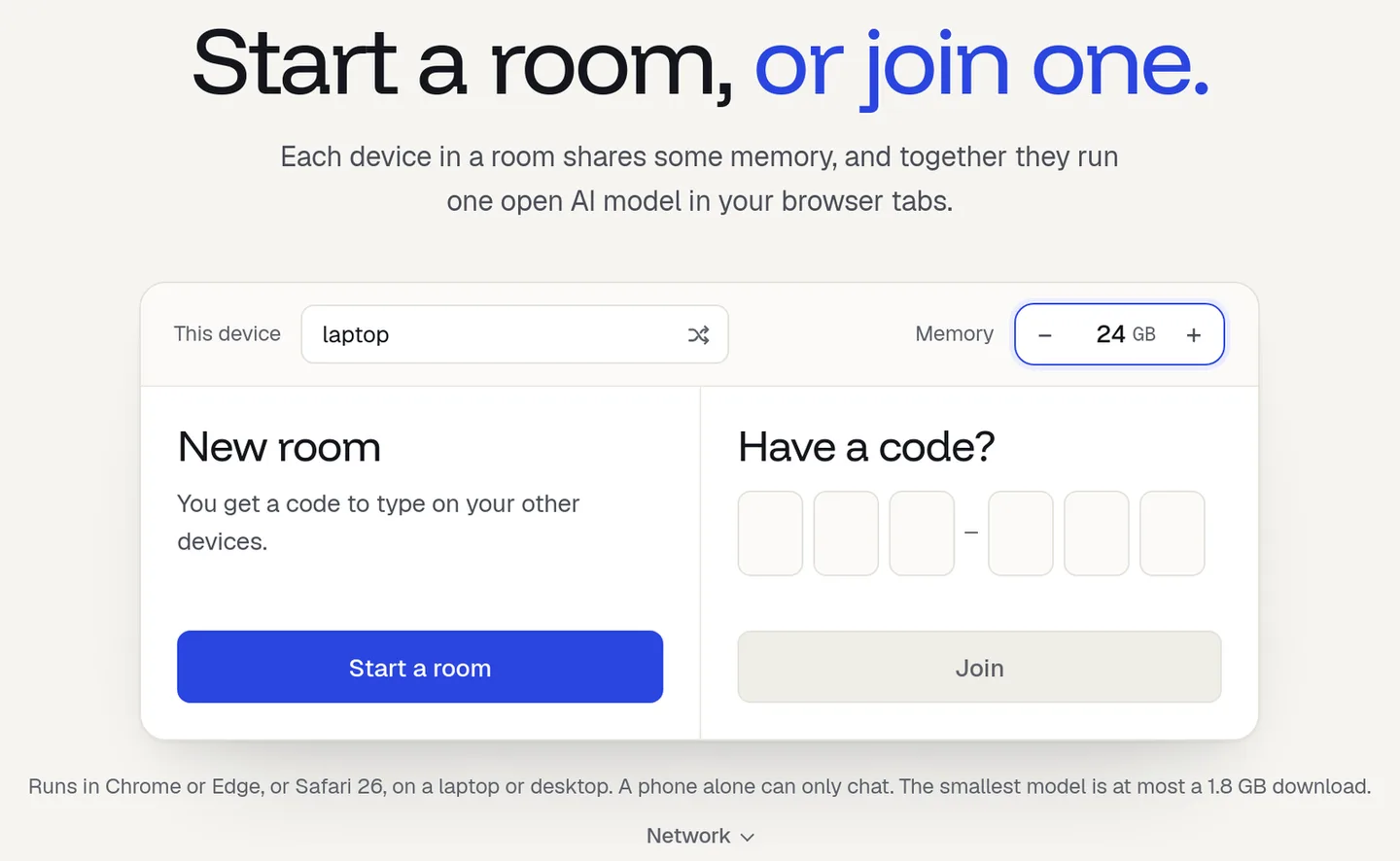
Open pooled.run/room.
The page checks that the browser can use the GPU. If it can’t, it says so and how to fix it.
-
Check the two fields at the top.
This device is the name others will see. Memory is how many GB this laptop gives the room. It starts at 4 GB: raise it to 24 for the MoE. You can change it later in the room.
-
Press Start a room.
You are in a room of one. The room code, like
4TK-G9P, shows in the header. You only need it when you add devices. -
Pick Qwen3.6 35B MoE.
Pick a model lists the three models. Each one says fits, or how many GB the room is short, like
13 GB short. Pick Qwen3.6 35B MoE: it needs 22.5 GB, and the room saysNeeds 22.5 GB. The room has 24 GB.On the right, The room pools shows what this laptop gives.With the 1.7B on a small laptop, 4 to 5.5 GB gives an 8K context: the row says
4 GB · 8Kand fits, and the room saysQwen3 1.7B · 8K context: the room's memory is short for 16K.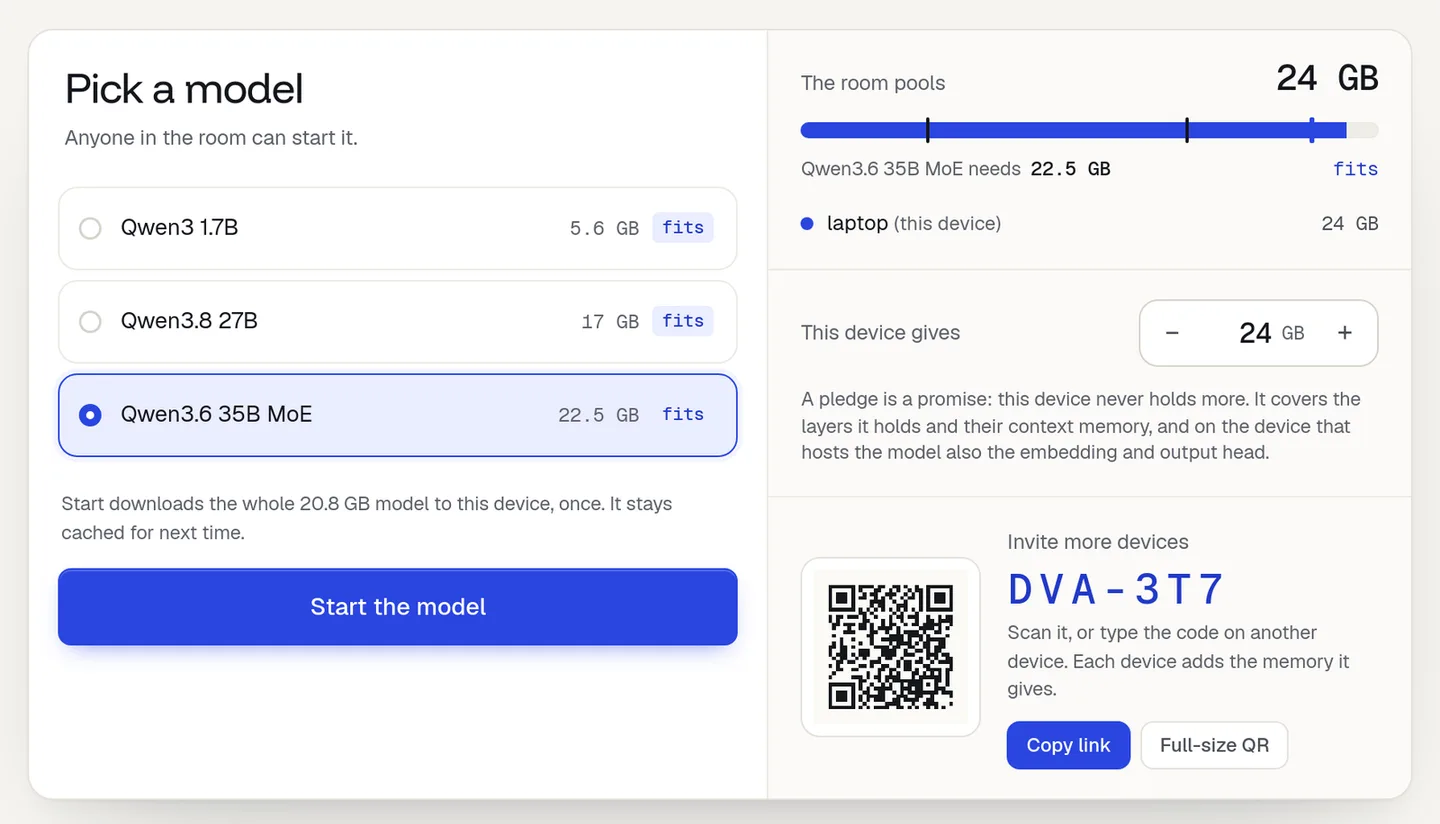
-
Press Start the model.
A card shows the download and then the load, with the GB done and the time left. On a fast connection this takes a few minutes (5.5 minutes in our test, for the 19.4 GB download). When it’s done, the room says Model ready on 1 device and the message box at the bottom turns on.
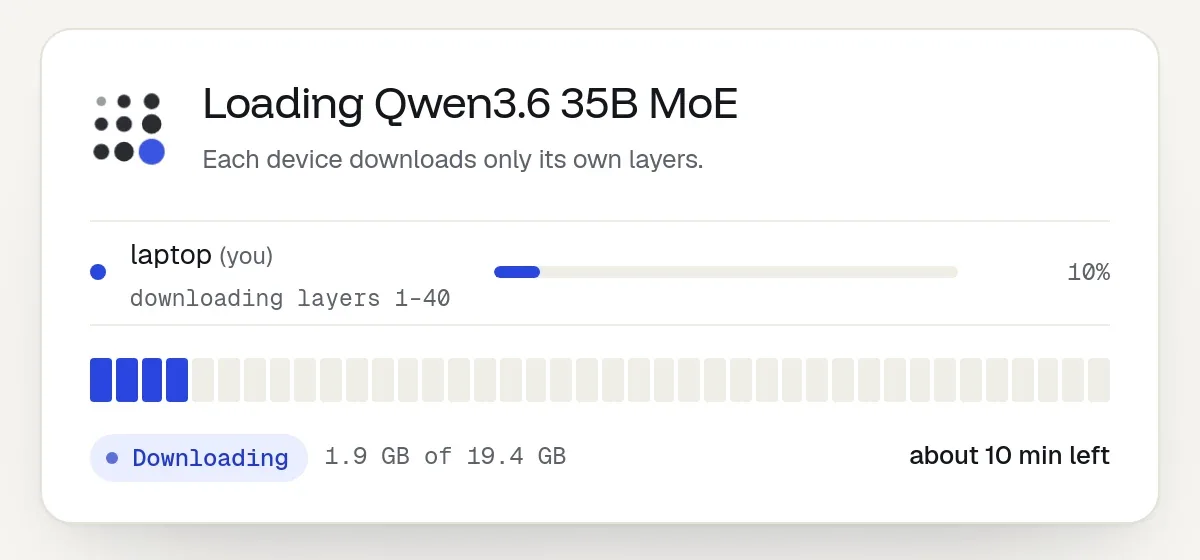
The load card while the model downloads. -
Ask something.
Type in Message the room, for example
Explain what a GPU is in two sentences., and press Send. The answer streams in word by word.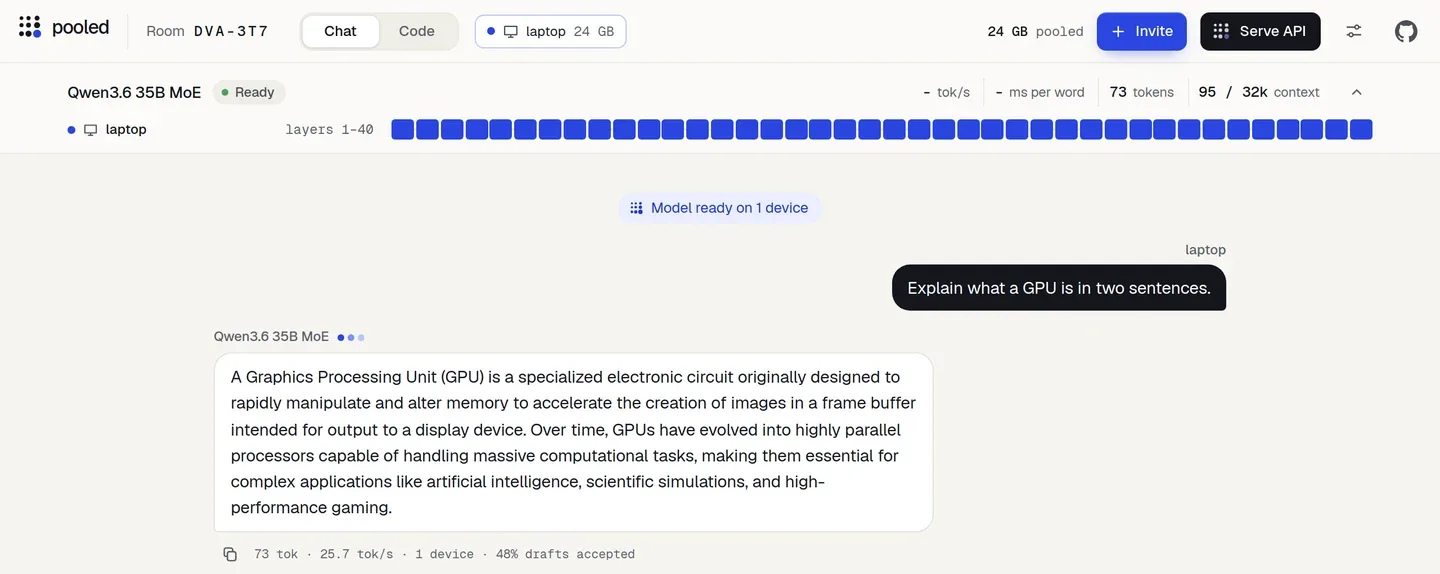
Ready on one laptop, with the first answer. The bar shows the layers this laptop holds.
What you should see
Section titled “What you should see”- After step 3: the room screen. The header shows the room code, Invite and how many GB the room pools.
- After step 5: Qwen3.6 35B MoE and Ready at the top, with a bar of the 40 layers this laptop holds and a 32k context.
- After step 6: an answer within a few seconds, and under it a line like
73 tok · 25.7 tok/s · 1 device · 48% drafts accepted. The smaller 1.7B writes about 20 to 50 tokens a second on a recent laptop.
Keep the tab in front and the laptop plugged in while you use it. A background tab or a sleeping screen can stall the model.
If something goes wrong
Section titled “If something goes wrong”“This device can chat but not help run the model”
Section titled ““This device can chat but not help run the model””The browser has no usable WebGPU. On Linux, Chrome needs chrome://flags/#enable-unsafe-webgpu and chrome://flags/#enable-vulkan turned on. On a Mac, update to Safari 26 or use Chrome. The join screen shows the fix for your browser under Details.
Start the model stays grey
Section titled “Start the model stays grey”The model says the room is short, for example 2 GB short. Raise This device gives, or press Give N GB from this device. If the laptop can’t spare 23 GB, pick Qwen3 1.7B, or add a second device: see Pool two devices.
“Can’t reach Hugging Face” while it downloads
Section titled ““Can’t reach Hugging Face” while it downloads”The model comes from Hugging Face. A VPN, an ad blocker or a firewall can block it. Fix that and press Start the model again: the parts that already downloaded are kept.
More messages and fixes: Troubleshooting.
- Pool two devices to split the model across two devices.
- Build an app in Code mode with the model you just started.
- Chat: the queue, Stop, Continue and who sees what.